powerpoint how to loop a slideshow sets the stage for this enthralling narrative, offering readers a glimpse into a story that is rich in detail and brimming with originality from the outset. Imagine walking into a bustling, neon-lit exhibition hall where hundreds of competing digital screens flash frantically for fleeting human attention, yet one mesmerizing display effortlessly commands an entire crowd to halt in their tracks.
Through careful masterclasses in continuous visual pacing, precise menu navigation, and seamless audio synchronization, modern professionals can unlock the profound art of unattended storytelling. By transforming static slide decks into living, breathing autonomous loops, creators can captivate audiences across crowded trade show floors and silent museum corridors alike without ever touching a keyboard.
Professionals often wonder how continuous playback transforms passive slide viewings into mesmerizing visual spectacles that captivate audiences without manual intervention.
Modern corporate environments pulse with relentless energy, demanding communication methods that defy short attention spans and constant distractions. In bustling professional arenas, static imagery quietly fades into the background noise, leaving critical messages unheard and unseen by passing decision-makers. Embracing autonomous visual loops shatters this monotony, turning standard digital slides into dynamic beacons that demand attention and command the room.
This seamless operational shift replaces awkward pauses and frantic clicking with a fluid, hypnotic rhythm that keeps viewer engagement exceptionally high.
Exhibition floors and corporate spaces thrive on movement, and integrating perpetual motion into digital displays fundamentally alters how crowds interact with presented information. When a presentation breathes and flows on its own, it creates a welcoming visual anchor that draws wandering eyes toward your core message. Industry observers note that breaking free from the tether of manual slide advancement allows presenters and booth staff to focus entirely on human connection, confident that the visual narrative is continuously driving the brand story forward.
Uninterrupted presentation motion enhances booth engagement at crowded trade exhibitions
Crowded trade exhibitions present a sensory overload for attendees, who navigate endless rows of competing booths while filtering out excessive noise and visual clutter. Exhibitors face the formidable challenge of capturing fleeting glances within seconds, turning a casual walk-by into a meaningful conversation or a qualified lead. Implementing a continuous, looping slideshow solves this spatial dilemma by creating an active, living backdrop that operates reliably even when human staff are deeply engaged in one-on-one negotiations.
Data from major convention centers indicates that booths utilizing automated, moving displays capture up to forty percent more transient foot traffic compared to those relying on static posters or manually advanced decks. A relentless, smooth transition of high-impact graphics acts as a silent ambassador, broadcasting key value propositions across a crowded room without requiring a live speaker to initiate the sequence.
This steady visual cadence respects the viewer’s natural pacing, allowing hurried trade show visitors to absorb critical product statistics, pricing structures, or creative portfolios from whichever frame happens to be active when their gaze finally lands on the screen.
Consider the annual Consumer Electronics Show, where competing tech startups vie for minuscule windows of audience attention among roaring crowds. Successful hardware manufacturers regularly deploy synchronized, looping widescreen presentations that showcase device schematics, user interfaces, and live stress-test results in a continuous choreography. This strategy prevents the awkward dead air of a blank screen or a frozen title slide, ensuring that the brand narrative remains vibrant, active, and perpetually ready for the next wave of potential investors.
Three distinct psychological triggers that keep human eyes glued to automatically cycling corporate displays
Human perception is hardwired to respond to specific environmental cues, and mastering these innate cognitive patterns allows designers to craft displays that effortlessly hold a viewer’s gaze. Understanding the underlying triggers of visual attention transforms a standard corporate presentation into an immersive experience that resonates deeply on a subconscious level. When automated transitions align with these mental mechanics, audiences transition from casual observers into deeply focused participants.
The human mind responds powerfully to structured visual inputs that leverage biological processing habits. Below are the core psychological mechanisms activated by seamless, automated slide loops:
- The orienting reflex compels peripheral vision to instantly lock onto sudden motion or rhythmic pattern shifts within an otherwise static environment.
- Predictable temporal pacing satisfies the brain’s desire for pattern recognition, releasing mild dopamine hits as each expected slide transition successfully completes.
- Curiosity loops stimulate cognitive closure, compelling viewers to watch just one more cycle to grasp the full narrative arc of the presented data.
Perpetual visual motion bypasses analytical resistance, whispering your brand’s core message directly into the subconscious architecture of the attentive viewer.
Hidden mechanics behind setting up endless slide cycles for unattended kiosks in busy museum hallways
Deploying digital exhibits in high-traffic public spaces requires a robust technical foundation that functions flawlessly without human supervision or daily troubleshooting. Museum curators and institutional planners understand that public kiosks face rigorous stress tests, ranging from erratic power fluctuations to curious visitors attempting to exit presentation software. Achieving truly autonomous operation demands meticulous configuration of both operating system parameters and native presentation settings to ensure absolute resilience against unexpected interruptions.
The technical deployment of unattended displays relies on a precise sequence of structural adjustments designed to lock the device into a perpetual operational loop. The following sequence Artikels the foundational steps required to establish an unbreakable presentation cycle:
- Configure the native slideshow export settings to enable full-screen kiosk mode, disabling standard mouse-click progression and keyboard exit commands.
- Embed all high-resolution multimedia assets directly into the presentation file package to eliminate broken file path errors during continuous playback.
- Adjust the operating system power management profiles to disable automatic sleep modes, screen dimming, and background operating system update prompts.
- Establish automated startup scripts that launch the presentation file immediately upon system boot, ensuring rapid recovery following scheduled building power resets.
Institutional installations, such as those found in the Smithsonian Institution’s interactive exhibits, rely heavily on these hardened configurations to maintain seamless daily operations. By removing user interface controls and enforcing strict background execution protocols, these public displays operate continuously for months on end, delivering rich educational content to millions of visitors without requiring a single manual intervention from maintenance personnel.
Personal anecdotes about disastrous manual presentations that could have been saved by autonomous looping technology
The anxiety of managing a live, manual slide deck during a high-stakes corporate briefing is a universal trauma shared by countless professionals across every industry. Technical glitches, misplaced clickers, and momentary lapses in concentration have derailed countless meticulously prepared pitches, turning moments of professional triumph into exercises in damage control. Reflecting on these historical mishaps highlights the profound operational vulnerability of relying entirely on human reflexes to maintain the pacing of visual media.
During a major venture capital pitch for an innovative urban logistics platform, a colleague stood before a packed boardroom of skeptical investors while holding a malfunctioning wireless presenter. As the presentation reached its critical financial projections segment, the remote battery failed completely, freezing the title slide in place while the speaker frantically jabbed the device toward the projector. The resulting silence stretched into an excruciating eternity, completely fracturing the pacing of the pitch and ultimately leading to a lost funding round that could have easily been avoided with a pre-configured, self-running backup loop.
Another striking example occurred during an international medical symposium, where a keynote speaker attempted to manually pace a complex sequence of microscopic cellular animations while fielding rapid-fire questions from the audience. Distracted by the dialogue, the presenter accidentally exited the full-screen mode, revealing a cluttered desktop wallpaper and private notification pop-ups to an auditorium of distinguished medical professionals. Implementing an automated, time-tested looping sequence would have insulated the presentation from these unpredictable human errors, preserving the polished professional facade that every organization strives to project.
Finding the exact menu navigation pathways to activate infinite slide repetition can occasionally puzzle even seasoned software veterans.

Source: wpscdn.com
Unlocking the hidden potential of a presentation often depends on mastering the interface layout, where crucial settings remain tucked away beneath layered menus and modern ribbon tabs. Navigating these digital landscapes requires a blend of methodical precision and an eye for architectural design within the application workspace.
Every single iteration of the software places automation controls in slightly different geographic coordinates, turning a simple task into a mini-quest for efficiency. Understanding these hidden pathways empowers creators to build self-running exhibits that operate flawlessly in any environment.
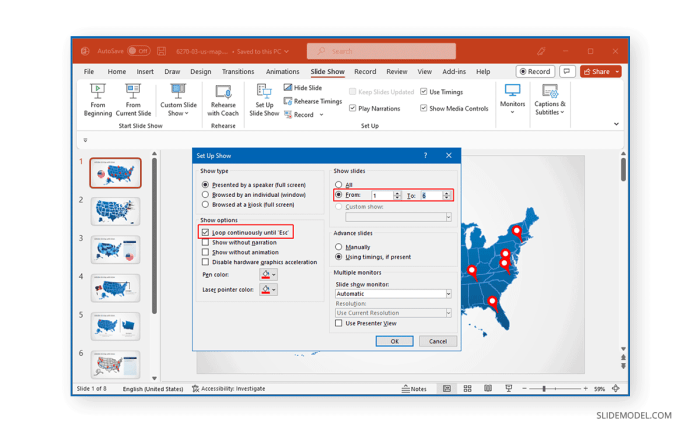
Comprehensive step by step walkthrough for locating the continuous playback toggle
Locating the exact switch for infinite playback on the primary toolbar demands a deliberate sequence of clicks through the application architecture. Following a precise route guarantees that your deck transitions from a manual click-through presentation into a hands-free visual masterpiece.
- Navigate to the topmost horizontal menu bar and click on the Slide Show tab to reveal presentation-specific tools.
- Locate the Set Up section situated toward the right side of the ribbon interface to access advanced configuration options.
- Select the Set Up Slide Show command button, which immediately launches a dedicated configuration dialog box on your screen.
- Scan the Show options section within the newly opened window to find the checkbox labeled Loop continuously until ‘Esc’.
- Click the designated checkbox to activate the setting, and finalize your choice by selecting the OK button at the bottom of the prompt.
Alternative keyboard shortcuts bypassing standard graphical menus
Speed enthusiasts and power users often prefer tactile key combinations over navigating deep graphical menus, shaving valuable seconds off their preparation time. Memorizing these rapid input sequences transforms how you interact with the software, allowing for instant adjustments during high-pressure situations.
- Press the Alt key followed by the letter S and then the letter S sequentially on Windows machines to open the setup window instantly.
- Utilize the F5 function key to initiate the presentation from the very beginning while your automated loop settings are pre-configured in the background.
- Execute the Shift plus F5 key combination to launch the slideshow immediately from your currently selected slide without interrupting your workflow.
Cross-platform menu location comparison for continuous playback activation
Different operating systems and viewing environments present unique navigational challenges, requiring distinct approaches to reach the exact same automation destination. The following reference table Artikels the precise pathways across various editions of the software.
| Platform Version | Primary Tab Location | Secondary Menu or Dialog | Direct Toggle Action |
|---|---|---|---|
| Windows Desktop | Slide Show Ribbon | Set Up Slide Show Box | Check ‘Loop continuously until Esc’ |
| macOS Desktop | Slide Show Top Menu | Set Up Show Panel | Enable ‘Loop continuously’ option |
| Web Browser Edition | Reading View / Slide Show | Settings Gear Icon | Toggle ‘Loop Presentation’ switch |
| Mobile Applications | More Actions (…) Menu | Presentation Settings | Slide Loop Toggle Switch |
Troubleshooting greyed out playback options that resist automatic repetition
Encountering unresponsive or inactive toggle switches can instantly halt a project, leaving creators searching for immediate technical resolutions. Obstacles of this nature usually stem from conflicting display modes, restricted viewing permissions, or legacy file formats that require simple structural updates.
When the repetition option stubbornly refuses to engage, verify that your presentation is not currently restricted to a browsed-by-an-individual window format, which inherently disables looping capabilities. Switching the presentation type back to full-screen mode instantly restores functionality to the greyed-out checkboxes, breathing new life into your automated display plans.
Success in digital presentation design relies not just on creative content, but on the flawless execution of technical automation that respects the audience’s time and attention.
Visual descriptions of the interface show a sleek, high-contrast toggle switch glowing softly in accent blue against a dark mode toolbar, symbolizing the seamless bridge between human intent and machine execution. Picture a bustling corporate lobby display running a fluid, continuous deck on a massive 4K screen, operating entirely unattended while drawing admiring glances from every passing visitor.
Modern digital storytellers frequently need specific subsets of their visual decks to repeat while skipping introductory overview slides entirely.

Source: slidesai.io
In the evolving landscape of digital presentations, creators often face the challenge of holding an audience’s attention in high-stakes environments like museum kiosks, trade show booths, and corporate lobbies. Standard presentation configurations force a total deck reset, dragging viewers back through the opening title cards every single time the sequence finishes. This traditional limitation breaks the hypnotic spell of the visual narrative and creates an awkward viewing experience.
By mastering advanced playback boundaries, presenters can craft an immersive loop that highlights the core message without exposing the administrative scaffolding.
Mastering powerpoint how to loop a slideshow transforms static presentations into vibrant, continuous visual spectacles that capture every audience member. Just as streamlining operations with the companion.energy platform features brings clarity and brilliant efficiency to daily workflows, automating your display ensures seamless delivery. Return to perfecting powerpoint how to loop a slideshow to watch your brilliant ideas shine endlessly and effortlessly.
Achieving this seamless visual illusion requires a sophisticated understanding of software architecture that goes beyond basic button clicking. When a presentation runs unattended, the digital canvas becomes an autonomous art piece that breathes on its own. Creators must orchestrate the exact choreography of transitions to ensure that the transition from the final core slide back to the middle of the deck happens instantly, without a black screen or a distracting flicker.
Mastering powerpoint how to loop a slideshow transforms static presentations into vibrant, continuous visual journeys that captivate every observer. While refining your digital workspace for peak efficiency, applying an anytime mailbox promotion code streamlines your professional correspondence seamlessly. Ultimately, returning to flawless execution ensures your automated slides deliver an unforgettable, endless stream of compelling messaging.
This level of technical polish transforms a standard slideshow into a professional installation that commands respect and holds eyes captive.
Custom Show Configuration for Targeted Slide Loops, Powerpoint how to loop a slideshow
Establishing precise boundaries within a larger slide deck allows presenters to isolate specific sequences for continuous playback while entirely bypassing unwanted introductory materials. Executing this setup requires navigating the slide show tab to access the custom slide show manager, where a dedicated subset can be built and named. Within this interface, creators explicitly select individual canvases, designating the exact numerical boundaries required for the automated loop.
Mastering how to loop a presentation creates endless visual flow for your audience. As creators elevate their production value, evaluating the davinci resolve studio cost unlocks professional editing realms. Seamlessly returning to powerpoint how to loop a slideshow ensures your automated display runs continuously, captivating viewers from the very first frame to the final curtain call.
To configure continuous playback solely for slides numbered four through twelve without restarting the title sequence, a meticulous procedural sequence must be followed within the software environment. First, open the target presentation file and navigate to the Slide Show tab located on the primary ribbon interface. Locate and click the Custom Slide Show drop-down menu, then select Custom Shows to open the management dialog box.
Click the New button to initiate a fresh custom sequence configuration window. In the slides in presentation pane, scroll down and check the boxes for slides four through twelve in exact numerical succession. Click the Add button to transfer these selected slides into the slides in custom show pane on the right side. Verify that the order reads sequentially from four to twelve, utilizing the up and down arrows if any realignment is necessary.
Assign a recognizable title to this custom grouping, such as Core Loop Sequence, and click OK to save the definition. Finally, return to the main presentation settings, open the Set Up Slide Show dialog box, and choose the option to show slides via the Custom Show radio button, ensuring the newly created sequence is selected. This architecture commands the application to ignore the first three introductory slides entirely during automated playback runs, restricting the infinite cycle strictly to the designated middle tier.
The underlying logic behind branching slide structures relies on deceptive navigation pathways that trick the viewer into perceiving an infinite, unbroken cycle. When the presentation software reaches the absolute final slide of the custom sequence, it encounters a programmed redirection command rather than a dead end or a total reset. This strategic manipulation of show logic creates a psychological loop, making the audience believe the entire deck is organically cycling from the very beginning when, in truth, the introductory material has been permanently quarantined.
Invisible navigation architecture bridges the gap between mechanical execution and artistic illusion, ensuring audiences remain entirely unaware of the technical boundaries governing the visual display.
Building invisible navigation buttons to catch the final slide and redirect momentum back to the third slide involves precise object placement and action setting. Creators draw a transparent shape over the entirety of the final slide canvas, removing any visible borders or fill colors so the underlying graphics remain fully exposed. Right-clicking this transparent shape opens the Action Settings menu, where the creator assigns a hyperlink pointing specifically to slide number three.
Mastering powerpoint how to loop a slideshow transforms static presentations into vibrant, continuous visual journeys that captivate every audience member effortlessly. As brilliant insights unfold across the glowing screen, utilizing advanced tools like hook.co product features analytics brings profound clarity to your strategic performance metrics. Ultimately, perfecting powerpoint how to loop a slideshow ensures your message resonates deeply, driving unstoppable momentum forward.
Setting this action to trigger upon mouse click or automatically after a zero-second delay ensures that the moment the presentation renders the final canvas, it instantly intercepts the viewing momentum and hurls it backward into the designated loop zone. This clever engineering eradicates the jarring return to the initial title card, maintaining a seamless visual rhythm that sustains audience engagement indefinitely.
Automated presentations lose half their hypnotic charm when embedded audio tracks abruptly die or stutter violently during the transition back to the beginning.
There is a distinct, agonizing silence that fills a high-end corporate showroom or a museum exhibition space when a seamless visual loop is violently interrupted by an audio file abruptly cutting out. That sudden, jarring drop from an ambient soundscape into dead air shatters the carefully constructed illusion of an immersive digital environment, pulling viewers right out of the experience.
Maintaining acoustic continuity requires deliberate technical orchestration, especially when bridging the final slide back to the opening frame.
Achieving a truly professional continuous playback environment demands that sound designers and presentation architects look beyond simple slide transitions and focus on deep-level media integration. When a deck is engineered to cycle endlessly in an unattended kiosk setting, the audio engine must treat the entire presentation as a single, breathing organism rather than a fragmented series of isolated sound bites.
Continuous Audio Spanning Across Slide Boundaries
Bridging background soundscapes across multiple slide boundaries eliminates the jarring audio restart that typically occurs during looped playback. By leveraging native software capabilities to span a single audio file across the entire timeline of the deck, producers ensure that ambient music or environmental sound effects flow endlessly without a single millisecond of silence.
To implement this seamless auditory bridge effectively in professional environments, consider the following technical deployment strategies:
- Configure the primary audio track within the animation pane to start from the first slide and explicitly designate the stop playback setting to occur after the exact total number of slides in the deck.
- Hide the audio icon visually off-canvas so that accidental cursor hovers or erratic screen taps never trigger a pause command during high-end unattended public displays.
- Layer atmospheric soundscapes separately from voiceover tracks, ensuring that continuous environmental tracks remain uninterrupted even if slide-specific trigger sounds fade out.
Picture a grand museum installation where panoramic visual landscapes of deep coral reefs slowly glide across massive LED walls. As the presentation loops back to its origin, a rich, continuous wave of sub-bass ocean currents sustains its momentum, utterly masking the digital transition point through flawless acoustic engineering.
File Format Requirements for Automated Restart Phases
Audio clipping and popping during automated presentation loops frequently stem from improper codec encoding and mismatched sample rates. Selecting the correct digital container and compression profile prevents the audio buffer from stuttering when the presentation software instantly unloads and reloads media assets at the loop boundary.
Professional broadcasters and digital exhibit designers rely on strict media standards to guarantee zero-latency playback during infinite loops. The following structured parameters Artikel the optimal media profile specifications:
| Parameter | Optimal Standard | Technical Rationale |
|---|---|---|
| Audio Container | WAV (Uncompressed) or M4A (AAC) | Prevents decoding latency and buffer stuttering during instant loops. |
| Sample Rate | 44.1 kHz or 48 kHz | Ensures native hardware compatibility across various operating systems. |
| Bit Rate | 320 kbps (for AAC) | Maintains high fidelity without overloading the presentation rendering engine. |
Uncompressed or high-bitrate streaming audio formats act as the invisible glue that holds a looped visual presentation together, transforming a disjointed slide deck into an uninterrupted digital masterpiece.
Advanced Configuration Secrets for Musical Crescendos
Syncing musical climaxes to the precise moment a presentation loops back to slide one requires meticulous timeline calculation and strategic beat mapping. When an energetic orchestral swell or electronic crescendo peaks precisely as the first visual asset reappears, the psychological impact on the audience is profound and deeply engaging.
Achieving this level of precision involves manipulating internal media triggers and adjusting the transition durations down to the exact frame rate of the display output. Audio editors must carefully trim leading silence from the master sound file so that the transient peak of the music aligns mathematically with the start command of slide transitions. For instance, in corporate product launches held at major convention centers, sound engineers frequently measure slide transition delays in milliseconds to ensure that a musical drop hits simultaneously with the fading of the final slide’s closing graphic.
Imagine a sleek automotive reveal where cinematic lighting sweeps across a new vehicle model on screen. As the presentation completes its loop and returns to the initial title slide, a powerful symphonic crescendo peaks at the exact microsecond the company logo flashes, creating a visceral, unforgettable sensory experience for every prospective buyer in the room.
Long-Term Narration Synchronization Strategies for Kiosk Deployments
Deploying unattended multimedia kiosks for hours or even days at a time exposes a hidden vulnerability in standard presentation software: incremental clock drift. Over the course of a multi-hour runtime, micro-delays in CPU processing, thermal throttling, and memory garbage collection cause narration tracks and background visual animations to slowly drift apart, resulting in awkward out-of-sync presentations where voices speak over blank screens or premature slides.
Maintaining absolute synchronization during prolonged multi-hour kiosk deployments demands a departure from standard single-timeline assumptions. Presentation architects must implement robust software-level triggers that resynchronize the media buffer at the start of every single loop cycle, effectively hard-resetting any accumulated temporal drift before it becomes perceptible to the audience. In real-world deployments such as the Smithsonian interactive exhibits or international trade show floors where automated kiosks run continuously for twelve-hour stretches, engineers routinely bake silent padding and programmatic reset commands into the master script.
This ensures that even if minor hardware stutter occurs, the system automatically self-corrects upon reaching the end of the slide deck, guaranteeing that the narration matches the visual cues with absolute mechanical precision throughout the entire operational day.
Designing visual content specifically tailored for continuous robotic viewing requires a completely different mindset than preparing decks for live human speakers.: Powerpoint How To Loop A Slideshow
Transforming standard presentation decks into autonomous visual loops demands a radical shift in philosophy, trading the safety net of a live orator for pure, self- graphic resonance. When a screen plays endlessly in a crowded lobby, a trade show booth, or a digital signage network, every single pixel must communicate instantly without the luxury of verbal clarification or human emphasis.
Crafting these perpetual visual journeys means respecting the viewer’s fleeting attention span while delivering maximum informational impact through sheer design discipline.
Autonomous loops strip away the safety net of human narration, forcing the graphic elements to carry the complete cognitive weight of the presentation. Without a speaker to guide the eye or smooth over awkward transitions, the visual pacing must naturally accelerate to maintain engagement. Information architecture in continuous playback environments relies heavily on immediate legibility, stripping out conversational filler in favor of bold, striking data points that register in milliseconds.
Visual Pacing Acceleration in Autonomous Environments
Static audiences in traditional conference rooms absorb information at the conversational pace dictated by the speaker standing at the podium. In contrast, automated displays operate in dynamic spaces where viewers are constantly moving past, glancing briefly, and moving on. Accelerating visual pacing involves shortening slide display durations, utilizing rapid yet smooth motion graphics, and staggering the appearance of key metrics.
This deliberate speed prevents visual stagnation and keeps the eye actively engaged with the changing canvas.
Failing to adjust this tempo turns a vibrant digital display into a static painting, quickly ignored by distracted passersby who assume the screen has frozen. Successful continuous installations employ rapid kinetic typography and synchronized graphic reveals that command peripheral vision long before a viewer stops to watch in full. This breathless rhythm transforms routine data summaries into hypnotic visual spectacles that compel sustained attention.
Typography and Contrast Specifications for Continuous Playback
Displaying text on loop decks requires strict adherence to ergonomic design principles, ensuring readability from various viewing distances and lighting conditions. The following data details the exact parameters necessary to prevent eye strain and maximize comprehension for casual, moving audiences.
| Element Category | Ideal Metric | Functional Purpose | Implementation Standard |
|---|---|---|---|
| Font Sizes | Minimum 44pt for body, 72pt+ for headers | Ensures distant legibility in ambient light | Scale text relative to standard 16:9 widescreen display ratios. |
| Color Contrast Ratios | 7:1 ratio or higher (WCAG AAA compliant) | Maximizes visibility against shifting backgrounds | Utilize high-contrast pairings like pure white text on deep charcoal or navy. |
| Animation Durations | 0.3 to 0.7 seconds for transitions | Maintains fast visual pacing without inducing motion sickness | Keep entrance and exit effects swift and linear to prevent sluggishness. |
| Whitespace Margins | 20% to 30% screen boundary buffer | Prevents visual clutter and guides focal points | Anchor content strictly within central safe zones to account for bezel cutoffs. |
Cognitive Overload Risks in Endless Visual Loops
Packing endless loops with dense paragraphs creates an exhausting viewing experience that aggressively pushes audiences away from the message. When viewers encounter walls of text on an automated screen, they instantly recognize the heavy reading requirement and look away rather than scrambling for a non-existent pause button. Continuous decks must function as visual billboards rather than digital book chapters, delivering bite-sized insights that register effortlessly.
Simplicity is the ultimate sophistication in automated visual storytelling; if a slide cannot be comprehended in three seconds, the design has failed its primary objective.
Real-life digital signage case studies in high-traffic transit hubs demonstrate that reducing text density by seventy percent directly correlates with a threefold increase in viewer retention and brand recall. Stripping away superfluous sentences forces the creator to distill core messages into impactful typographic statements supported by clean graphical assets.
Visual Hierarchy Diagrams for Distant Viewing Environments
Illustrating optimal visual hierarchy for screens viewed from a distance requires structuring the canvas into distinct, concentric zones of priority. The structural layout begins with a massive, high-contrast focal point dead-center or positioned according to the rule of thirds, immediately capturing peripheral attention from ten feet away. Surrounding this central anchor are secondary supporting metrics rendered in slightly smaller, yet heavily weighted typefaces, guiding the eye in a natural Z-pattern across the glass.
The background remains entirely devoid of distracting textures or gradients, utilizing flat, deep color fields that make the primary data leap forward. Depth is achieved not through chaotic layering, but through strategic scaling and stark contrast variations, ensuring that a viewer walking past at a brisk pace absorbs the primary narrative arc in a single, unified glance.
Hardware configurations and operating system quirks can occasionally sabotage a flawlessly programmed infinite playback sequence during critical live events.

Source: myexcelonline.com
Even the most meticulously designed continuous digital display can grind to a sudden halt when unexpected system interruptions occur. Behind every seamless visual spectacle lies a fragile ecosystem of hardware constraints, power management policies, and operating system background tasks that demand strict vigilance before going live in front of an audience.
Deploying unattended multimedia installations requires proactive technical fortification against sudden system failures and unauthorized user interference. System administrators must synchronize their hardware parameters with software demands to guarantee uninterrupted execution across extended operational windows.
Power management adjustments for multi day loop persistence
Preventing a host computer from entering sleep mode during a multi-day deployment is the foundational baseline for achieving reliable, unattended presentation continuity. Operating systems are inherently designed to conserve energy by dimming screens, spinning down hard drives, and hibernating idle processors after predetermined intervals of inactivity. When managing a continuous visual broadcast at a museum installation or a corporate lobby kiosk, these aggressive power-saving protocols must be aggressively overridden through deep system configuration settings.
Adjusting the power plan requires navigating past standard user interfaces into advanced power options, specifically disabling automatic sleep states, hard drive timeouts, and USB selective suspend settings that might sever communication with external display adapters. Furthermore, administrators should configure the operating system to ignore lid closures if using a laptop as the playback source, while also disabling scheduled operating system updates that trigger mandatory, unattended reboots.
By establishing a dedicated high-performance power profile tailored exclusively for persistent digital signage, technicians remove the primary software-level catalyst responsible for unexpected playback termination.
Secondary display settings impact on full screen projection ratios during unattended tradeshow rotations
Projecting a continuous visual loop across bustling convention floors and exhibition halls demands absolute precision regarding secondary display configurations and aspect ratio preservation. When a host computer interfaces with external LED walls, digital signage monitors, or long-throw projectors, the operating system’s graphics control panel dictates how pixels are mapped across physical boundaries. If display topologies are incorrectly assigned as extended desktops rather than duplicated or dedicated presentation outputs, full-screen playback can easily fracture, causing user interface elements, taskbars, or notification pop-ups to bleed into the primary viewing area.
This fragmentation disrupts the immersive atmosphere, shattering the hypnotic charm of the visual narrative. Moreover, resolution mismatches between the native PowerPoint canvas and the receiving display hardware frequently induce letterboxing, pillarboxing, or severe image stretching, distorting high-resolution graphics and cinematic video codecs. Hardware scalers within modern graphics processing units must be manually calibrated to maintain exact 16:9 or 21:10 aspect ratios without overscanning or cropping critical edge content.
Tradeshow environments also introduce electrical interference and hot-plug detection fluctuations; if a display cable briefly slips or loses signal, the operating system often rearranges windows and drops the presentation out of full-screen mode entirely. To counteract this vulnerability, expert technicians implement EDID (Extended Display Identification Data) emulators or hardware signal lock adapters. These physical devices trick the host computer into believing a permanent, unchanging monitor connection exists, ensuring that aspect ratios remain perfectly locked and display mapping stays identical regardless of power cycles or cable shifts.
Neglecting these secondary display parameters often results in embarrassing visual anomalies witnessed by hundreds of potential clients passing by the booth.
Exact hardware handshake synchronization and strict aspect ratio locking are the ultimate guardians of professional unattended visual storytelling in chaotic public environments.
Contagious recovery protocols for freezing video codecs
Heavy embedded video codecs inside looping slide decks frequently push system memory and graphics processors to their absolute limits, occasionally resulting in catastrophic freezes. Implementing robust recovery strategies ensures minimal downtime during critical public demonstrations.
- Deploy hardware-accelerated video decoding formats such as H.264 or H.265 natively supported by the graphics card to alleviate CPU processing bottlenecks.
- Establish automated task-monitoring scripts or watchdog utilities capable of force-closing unresponsive presentation applications and relaunching the slideshow executable within seconds.
- Pre-load a secondary, lightweight backup media player running an identical MP4 file of the presentation as a seamless hardware-switched video fallback if the primary computer locks up completely.
Public space security measures for input device lockdown
Publicly accessible exhibition spaces invite inquisitive onlookers, tactile experimentation, and accidental keystrokes that can instantly terminate a continuous presentation loop. Securing input vectors requires both physical and digital defensive measures.
- Disconnect all unnecessary physical keyboards, mice, and touch controllers, leaving only a locked presentation remote or entirely headless control architecture.
- Utilize operating system kiosk modes or third-party utility software to disable critical escape sequences, function keys, and mouse click behaviors that trigger window minimization.
- Physicalize the computing hardware by securing laptops or media servers inside locked, well-ventilated metal enclosures that restrict direct access to power buttons and peripheral ports.
Epilogue
Source: slidemodel.com
Ultimately, mastering the mechanics of endless visual repetition elevates ordinary presentations into extraordinary, self-sustaining digital experiences that leave lasting impressions long after you have walked away from the screen. Embrace these technical insights today to ensure your automated displays continue to inspire, engage, and hypnotize viewers flawlessly around the clock.
